Reply without typing.
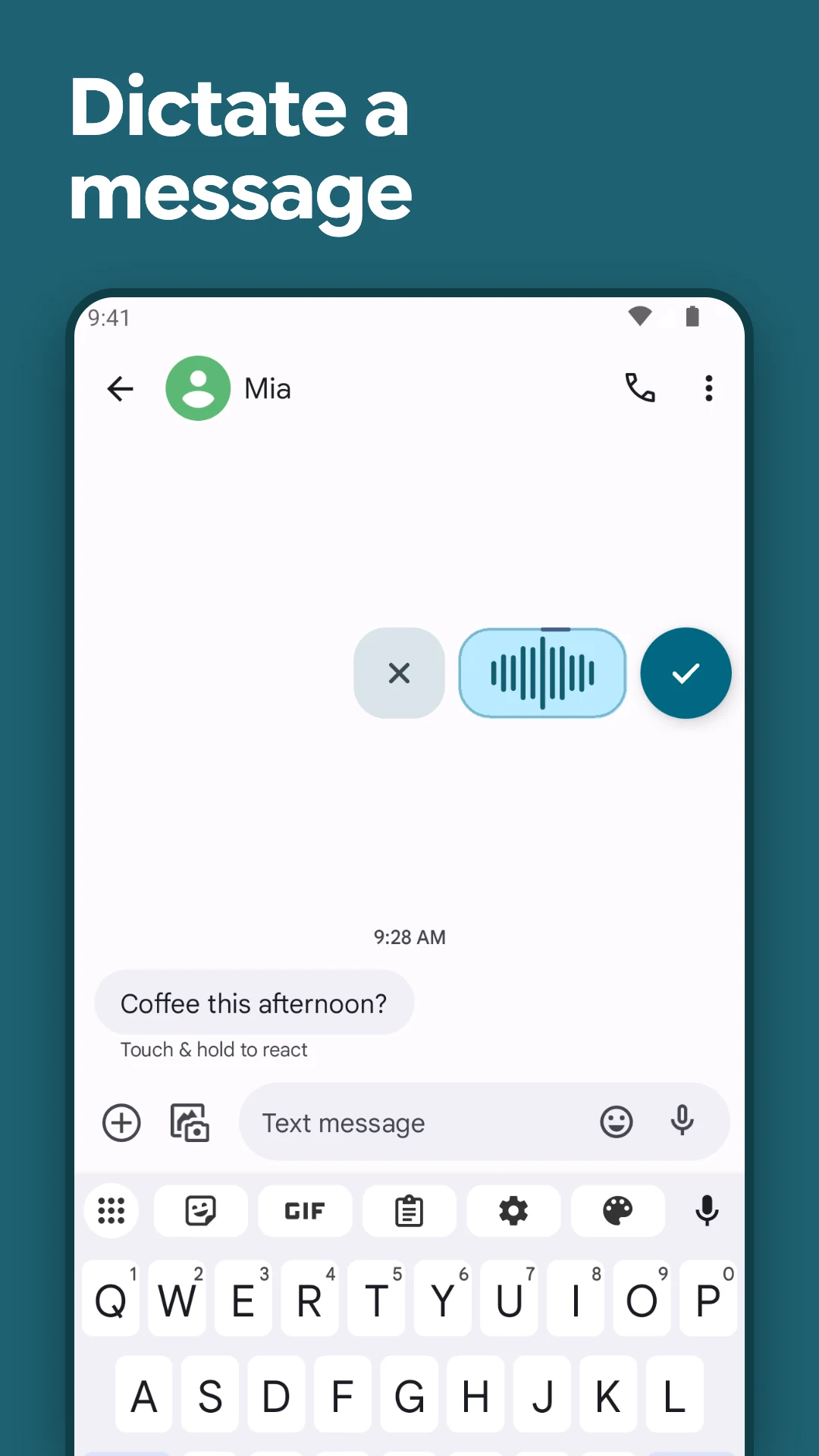
Speak the message, then review it in the field.
um I'll be there at three thirty pm
I'll be there at 3:30 pm.
Ready in the field. You choose when to send.
Voice-to-text for Android
Speak naturally and ScribeKey turns your thoughts into clear, ready-to-use text. Dictate a quick message or capture something longer, without breaking your flow.
Private by default·Across your apps·Cloud optional
Live on-device speech transcription and cleanup path.
Private by default
On-device speech works offline once its model is installed.

Everyday dictation
Use your voice for messages, work updates, prompts and more. ScribeKey puts the result where you need it, ready for you to review.
Speak the message, then review it in the field.
um I'll be there at three thirty pm
I'll be there at 3:30 pm.
Ready in the field. You choose when to send.
Say the details while they're fresh.

um the first draft is ready for review and I'll send the figures tomorrow
The first draft is ready for review and I'll send the figures tomorrow.
The hesitation is removed before insertion.
Talk through the detail you'd skip on a keyboard.
um help me plan a weekend in Melbourne with activities for young children
Help me plan a weekend in Melbourne with activities for young children.
ScribeKey writes the prompt. Your AI app handles the answer.
Longer thoughts
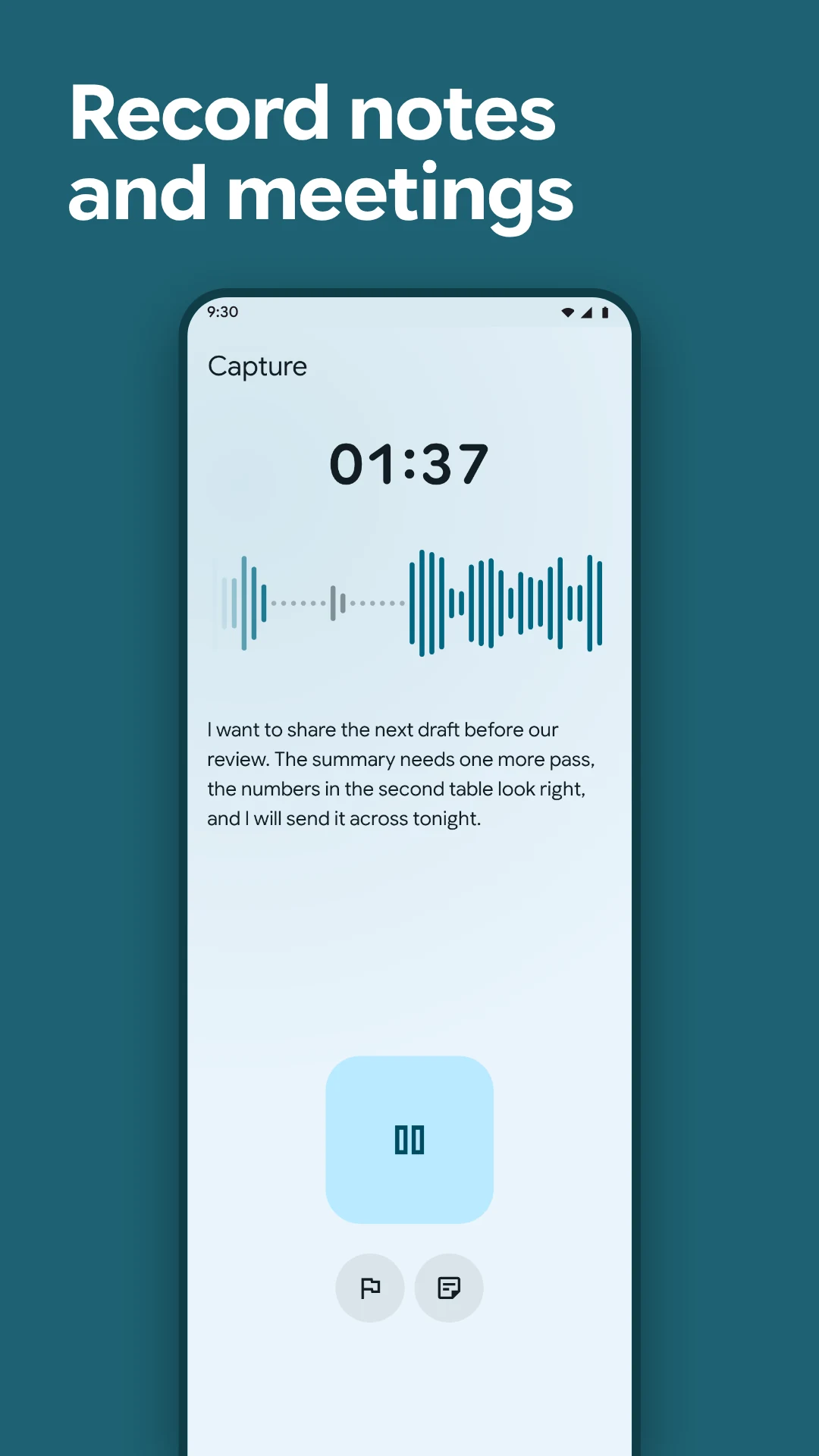
Record or import audio, edit the transcript, keep dictating, then export when you're done.
Type or keep dictating at the cursor.
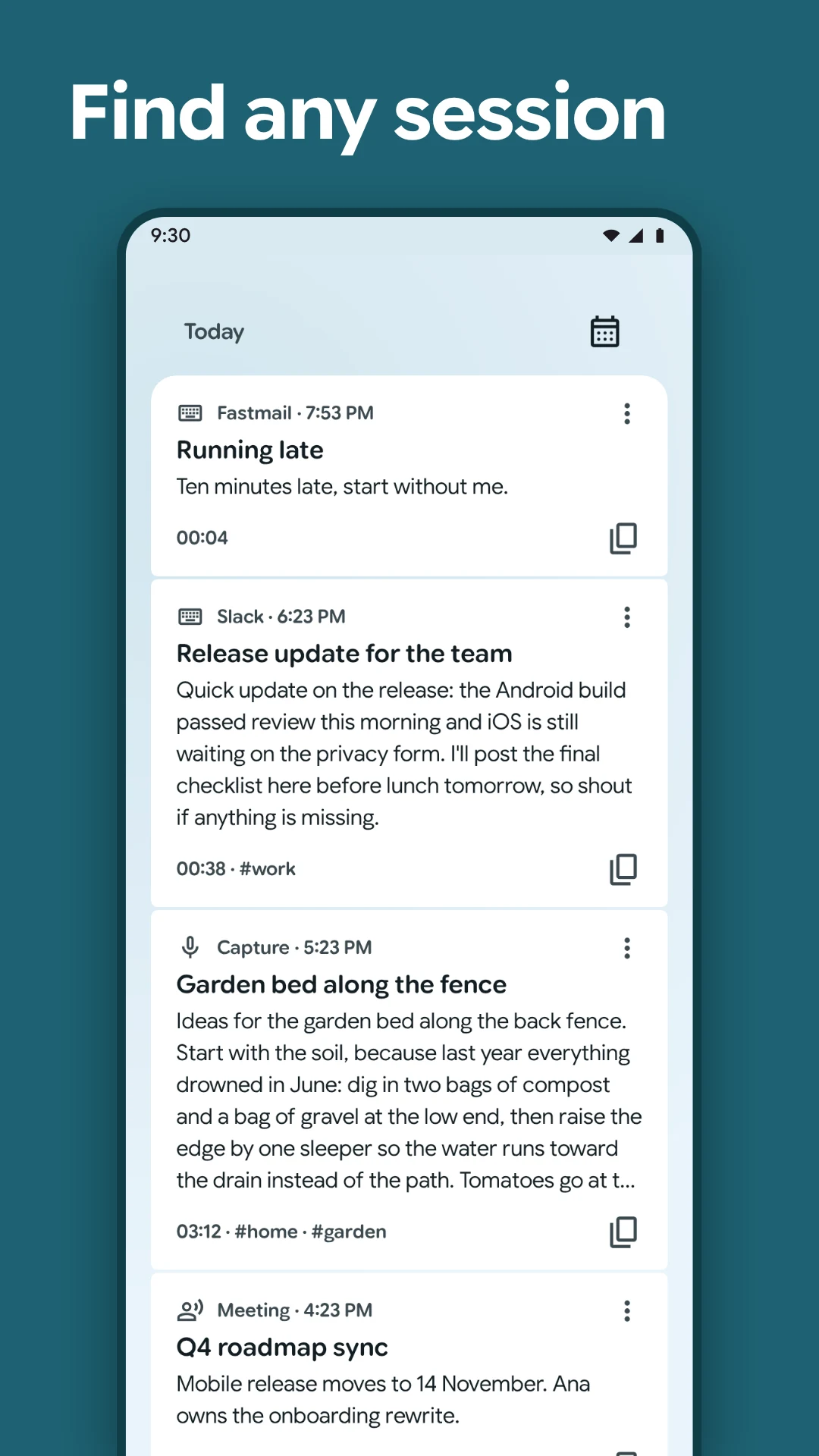
Sessions autosave edits and preserve the original transcript.
Export text, Markdown, JSON or CSV.
On Android 9 or later, choose a speech model, grant the setup permissions, open a text field, then tap the ScribeKey bubble and speak.
It uses the focused editable field and cursor to insert your text. Unrelated screen content is not saved, and secure fields are refused.
Local transcription and Standard cleanup work offline after the speech model is installed. Optional cloud features need a connection.
Not with on-device speech. Cloud speech sends audio to the provider you configure. Cloud Enhance separately sends text when you choose it.
No. ScribeKey appears beside your existing Android keyboard and returns text to standard editable fields. Password and other secure fields refuse transcription and insertion.
Help test ScribeKey on Android
Join the closed test and share what works and what gets in the way.
Android 9 or later · Closed test · Feedback welcome
Join with the Google account you use on Google Play. See the testing privacy notice.